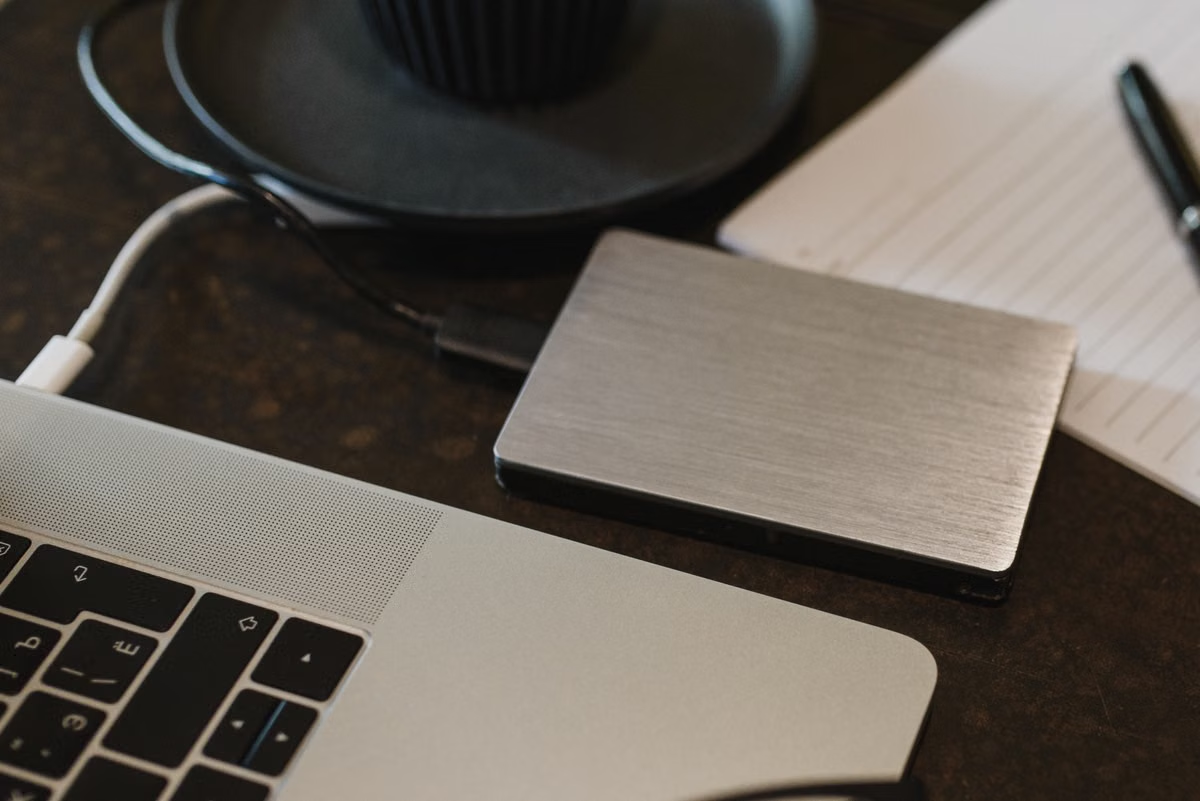
Keep frequently used models and their runtime files on your Mac’s internal SSD; move low-frequency models and archives to a reliable external SSD only after testing the application path and reconnect behavior. Do not pay for maximum internal capacity before measuring your active model set. If several users, remote jobs, or continuous model growth are involved, separate model storage from your personal Mac and evaluate a dedicated Mac node.
This guide is for you if local model files already occupy a large part of your Mac, if you are choosing an SSD capacity before buying a Mac for AI development, or if you maintain a remote Mac model node and shared model library.
Start with the active library, not the biggest model
The storage decision becomes easier when you stop treating every downloaded model as equally important. A model that you use every day has a different storage requirement from a model kept for occasional comparison. A model that can be downloaded again in minutes has a different recovery value from a custom fine-tune that took days to assemble.
For each model, record:
- The exact file size on disk.
- The quantization or format.
- Whether the file is a duplicate of another version.
- How often you use it.
- Whether it has custom prompts, adapters, embeddings, or evaluation data.
- How difficult it would be to download or rebuild.
- Whether the application must index or convert it before use.
The model file is only one part of the storage plan. You also need room for:
- Runtime metadata and application files.
- Download caches and incomplete transfers.
- Conversation history and exported sessions.
- Vector databases and local indexes.
- Test outputs, logs, and temporary conversion files.
- macOS updates, personal files, and backup staging.
A useful planning formula is:
Required working capacity = active model set + peak temporary space + application data + personal headroom.
Do not assign a universal capacity target to every Mac. Measure the files you actually intend to keep. The exact size of a model must come from its repository listing or from the local file record on your Mac, not from a generic model-size chart.
A storage worksheet you can reuse
Create a simple inventory before buying hardware or moving directories. Give every model a status such as active, occasional, archive, or disposable. Then total the active group separately from the rest.
Your worksheet should contain:
| Storage group | What to include | Preferred location | Decision rule |
|---|---|---|---|
| Active runtime set | Models used frequently, runtime metadata, high-frequency indexes | Internal SSD | Keep local when reliability and predictable access matter |
| Working cache | Partial downloads, conversions, temporary files, evaluation outputs | Internal SSD with cleanup rules | Reserve space for the largest expected operation |
| Occasional models | Models used for comparison or infrequent experiments | External SSD | Move only after path and re-index testing |
| Archive | Re-downloadable model files and inactive experiments | External SSD or separate archive | Keep a second copy if recovery would be costly |
| Shared or remote library | Models used by several people or unattended jobs | Dedicated Mac node | Separate it from personal documents and daily storage |
This table is a decision tool, not a hardware recommendation. It deliberately leaves room for your own measured file sizes, because the same model family can occupy different amounts of space depending on quantization, packaging, and duplicate copies.
First step: measure before you expand
Before changing the default model location, make a record of the current state. This gives you a rollback point and prevents a storage move from becoming an undocumented system change.
- Open the model manager or application settings and identify the current model directory.
- Record the full path, not only the folder name.
- Measure the size of each model directory and the available space on the target volume.
- List application versions, model formats, adapters, indexes, and custom files.
- Export or copy configuration files that define the model path.
- Note which models are currently loaded or indexed.
- Confirm that you have a recoverable copy before deleting anything.
For Ollama, the model location and environment behavior should be checked against the current Ollama FAQ, because a path change can affect how the service discovers its local model store. Do not assume that moving a visible folder is enough. The service may still point to the original location, or it may need to be restarted before the new path is used.
For LM Studio, distinguish between importing a model and merely copying a file. Its model loading documentation and import workflow describe separate operations. A copied file may not appear in the expected catalog until the application or CLI has indexed it.
The important distinction is this: loading a model, running inference, and storing a model are different resource problems. SSD capacity determines whether the files fit and how they can be accessed. Memory determines whether the model and its working state can remain available. Compute determines how quickly tokens or other outputs are produced. A larger SSD does not automatically compensate for insufficient unified memory.
A larger internal SSD solves a storage ceiling; it does not turn a memory-limited Mac into a faster inference machine.
Decide what belongs on the internal SSD
The internal SSD is usually the safer home for your active model set because it is always attached, has a stable path, and is less exposed to cable, hub, enclosure, and sleep-wake problems. These advantages matter most when a model service runs in the background, a local agent expects a fixed path, or an index must remain available for repeated searches.
Keep the following local when they are used frequently:
- The model that supports your daily coding or research workflow.
- Runtime files that the application expects to find automatically.
- High-frequency vector indexes.
- Active adapters or prompt assets.
- Files being evaluated or converted.
- Models used by scheduled scripts or local agents.
The internal SSD is not automatically the best place for the entire library. Its capacity is expensive to increase after purchase, and using it as a permanent warehouse can crowd out macOS, development tools, source repositories, and personal files. If your active set is small but your archive grows constantly, buying the largest internal option may create an avoidable upfront cost.
A practical boundary is based on activity, not a fixed percentage. If most of your model directory is used weekly and the library is stable, internal storage has a stronger case. If only a small active subset is used and the rest is dormant, a mixed layout is more sensible.
Move low-frequency models only after a controlled test
An external SSD can work well for occasional models, archived experiments, and a library that you do not need during every session. The move becomes risky when you treat the drive as a passive folder rather than part of a running service.
Use this migration sequence:
- Create the destination folder on the external SSD.
- Format or verify the volume according to your Mac-only, cross-platform, and encryption requirements.
- Copy the model files instead of moving the only copy.
- Compare source and destination file listings and sizes.
- Change the application or service path using its documented method.
- Restart the application or service.
- Ask the tool to discover, import, or re-index the copied models.
- Load one active test model and run a representative prompt.
- Put the Mac to sleep, wake it, restart it, and test the path again.
- Keep the original files until the new layout has passed your normal workflow.
Can Ollama models live on an external SSD? Yes, an external location can be suitable when the service supports the configured path and the volume remains mounted. The correct procedure depends on the current Ollama directory behavior, so verify the path in its documentation rather than relying on a symbolic link copied from another setup.
Will an external SSD slow model loading? It can change loading time, but you cannot infer full inference performance from sequential-read specifications alone. Loading includes file discovery, validation, mapping or copying data, application preparation, and memory pressure. Enclosure controllers, hubs, cables, thermal behavior, sleep state, and filesystem behavior can all change the result. Treat the difference as an environment-specific measurement, not a universal SSD benchmark.
For LM Studio, use its documented directory and import behavior rather than assuming that a folder move will preserve the catalog. The LM Studio CLI documentation is the appropriate reference when you manage models outside the graphical interface.
Second step: choose the filesystem around the failure you can tolerate
For a Mac-only external SSD, APFS is generally the logical starting point because Apple documents it as a supported format in Disk Utility’s filesystem guidance. It is suitable when the drive stays within your Mac environment and you want macOS-native behavior, permissions, and encryption options.
Your choice changes when the drive must also work with other operating systems or devices. Cross-platform sharing may require a different format, but compatibility can introduce limitations around permissions, metadata, encryption, or large application-managed directories. Apple’s external storage formatting guidance should be checked before you erase a drive.
Use this decision logic:
- Choose APFS when the SSD is primarily for Macs and the model service needs reliable Mac-native storage.
- Consider a cross-platform format only when moving files between operating systems is a real requirement.
- Use encryption when the model library contains private datasets, proprietary prompts, or sensitive conversation exports.
- Avoid storing an active unattended service on a volume that routinely disconnects.
- Test permissions under the same user account that runs Ollama, LM Studio, scripts, or agents.
A filesystem that looks correct in Finder can still fail operationally. Test mounting after sleep, restart, login, and temporary cable removal. Apple also provides troubleshooting for external drives that cannot save files. Use that guidance if permissions or read-only behavior appears after formatting or reconnecting.
Treat an unexpected external-drive disconnect as a production risk when a model service is serving remote requests. The failure is not limited to slower loading; the service may lose its path, fail a scheduled job, or leave an index in an incomplete state.
Third step: migrate by frequency and recovery value
A lifecycle layout avoids two common mistakes: filling the internal SSD with inactive models, and moving everything externally before proving that the workflow survives a disconnect.
Classify models using two dimensions:
- Use frequency: daily, occasional, rare, or inactive.
- Recovery cost: easy to download, slow to reproduce, or impossible to recreate without a private source.
Daily models with high recovery cost belong on the internal SSD, with a backup. Rare models with low recovery cost can live on an external archive. Occasional models sit between those choices and should be tested before becoming part of a scripted workflow.
Do not delete the source immediately after a copy. Keep a rollback copy until you have:
- Opened the model through the actual application.
- Confirmed the expected model identifier.
- Rebuilt or validated the index.
- Completed a real prompt or coding task.
- Restarted the Mac.
- Confirmed the model remains available after reconnecting the drive.
- Verified that backups can restore the file.
The migration itself also has a labor cost. If you repeatedly move models, update paths, rebuild indexes, and troubleshoot permissions, that time belongs in the cost estimate even when the external device was inexpensive.
Fourth step: estimate the lifecycle cost instead of comparing drive prices
The question is not simply whether an internal SSD or external SSD has the lower purchase price. Compare the total cost of keeping the library usable.
Use this template:
Internal-first cost =
internal capacity premium
+ future replacement or resale impact
+ backup storage
+ unused capacity cost

External-first cost =
external SSDs
+ enclosure, cable, or hub
+ backup storage
+ migration labor
+ interface occupancy
+ reconnect and failure risk
+ recovery cost after interruption
For each option, fill in your own values:
C_internal: additional cost of buying more internal capacity.C_external: external storage and required accessories.C_backup: cost of maintaining recoverable copies.C_migration: your time spent copying, indexing, and validating.C_failure: estimated loss if the active library becomes unavailable.U_personal: the percentage of the storage used by active work on a personal workstation.U_node: the percentage used by active jobs on a dedicated model node.
Do not insert a vendor price into this formula unless you have checked the current offer and the exact capacity, warranty, shipping, and tax conditions. The model library should be priced from your measured requirements, not from a headline capacity.
For a personal Mac, internal storage often has a higher utilization value when the active library is stable and you need a clean, portable setup. For a long-running model node, external or separate storage can be more efficient when the library is large, shared, and changed independently from the operating system. However, a low utilization rate on either system is a warning: you may be paying for capacity that remains idle.
Is buying a larger internal SSD better than adding external storage later? Buy more internal capacity when your measured active set, working headroom, and personal files already approach the configuration you need, or when the Mac must run models without attached equipment. Use external storage when most growth is archival, the library is replaceable, and you can maintain a tested backup and stable mount.
Fifth step: split the model node from your personal Mac when growth becomes operational
Your Mac stops being the right storage center when the model library begins to interfere with personal files, multiple people need the same models, or remote tasks must run while you are away from the machine.
A dedicated Mac node creates a clearer boundary:
- Model storage can be sized around service demand rather than personal documents.
- Updates and restarts can be scheduled separately.
- Access permissions can be managed for the service instead of your whole user environment.
- Backups can target the model library and indexes directly.
- A failure does not consume the storage needed for your daily development work.
The tradeoff is management overhead. You need a stable network path, remote access controls, monitoring, backup verification, and a recovery procedure. A dedicated node is not automatically cheaper than a personal Mac with an external SSD. It becomes easier to justify when the node has meaningful utilization, shared demand, or a requirement for continuous availability.
If demand is irregular, an on-demand Mac environment may be more appropriate. You avoid keeping a large model library powered and available when nobody is using it, but you must account for model transfer, setup time, persistence, and the cost of rebuilding an environment. The right choice depends on how often the environment is used and how expensive it is to restore.
For a broader setup comparison, review ZavCloud’s Mac cloud plans only after you have calculated your active library and remote workload. The commercial option should follow the storage requirement, not replace the measurement.
Use this migration checklist before you remove any local copy
- [ ] Record every model’s exact local size and format.
- [ ] Separate active, occasional, archive, and disposable models.
- [ ] Record the current Ollama or LM Studio model directory.
- [ ] Measure free space on both the internal and external volumes.
- [ ] Reserve room for cache, indexing, conversion, and temporary files.
- [ ] Choose APFS or another filesystem based on Mac-only, sharing, and encryption needs.
- [ ] Copy the library before changing the active path.
- [ ] Verify file listings and sizes after the copy.
- [ ] Reconfigure the tool using its current documented directory method.
- [ ] Re-index or import the models through the application.
- [ ] Load a representative model and complete a real task.
- [ ] Test sleep, wake, restart, login, and reconnect behavior.
- [ ] Confirm that the service fails safely if the external volume is absent.
- [ ] Keep a rollback copy until the new layout has been validated.
- [ ] Add backup and recovery time to the lifecycle cost.
- [ ] Recalculate the layout whenever the active model ratio changes materially.
Choose the layout from your active-model ratio
There is no responsible universal answer such as “always buy the largest internal SSD” or “always use an external drive.” Use your library’s behavior to select the layout.
Choose an internal-first layout when:
- Most of the library is actively used.
- The Mac travels or must work without accessories.
- A background service needs a stable path.
- Re-downloading models would disrupt important work.
- The external drive would be a single point of failure.
Choose a mixed layout when:
- A smaller active set supports daily work.
- The archive grows faster than the active set.
- You can keep the external SSD connected during normal use.
- You have tested re-indexing and recovery.
- You can maintain a second copy of important files.
Choose a separate Mac node when:
- Several users or remote jobs share the same library.
- Model storage growth is continuous.
- Your personal files compete with the model service.
- The machine must remain available independently of your daily work.
- The cost of interruptions is higher than the cost of managing another environment.
In practice, this means your first action should be a model inventory, not a storage purchase. Keep the frequently used runtime and models on the internal SSD, move low-frequency content only after validation, and isolate a dedicated node when shared or remote operation becomes the dominant requirement.
If your current approach is a single personal Mac with a crowded internal disk, an untested external drive, and no recovery copy, its weaknesses are clear: storage pressure can affect unrelated work, a cable or mount failure can interrupt the model service, and every migration becomes manual troubleshooting. Renting a Mac environment through ZavCloud can be a better fit for temporary AI development, remote testing, or a model node whose capacity changes over time, provided you confirm persistence, access, and backup requirements before moving production data. For a stable, heavy workload that runs continuously or requires physical local interfaces, buying and managing dedicated hardware may still be the more sensible long-term choice. For variable demand, start with your measured active library and compare that requirement against a separate Mac cloud environment rather than paying for permanent capacity you may not use.
ZavCloud Developer Infrastructure
Run Your AI Workloads on a Dedicated Cloud Mac
Move large local AI models off your internal SSD and run them on a dedicated Mac through ZavCloud.
Choose a ZavCloud plan with the memory, storage, and computing capacity your projects require.