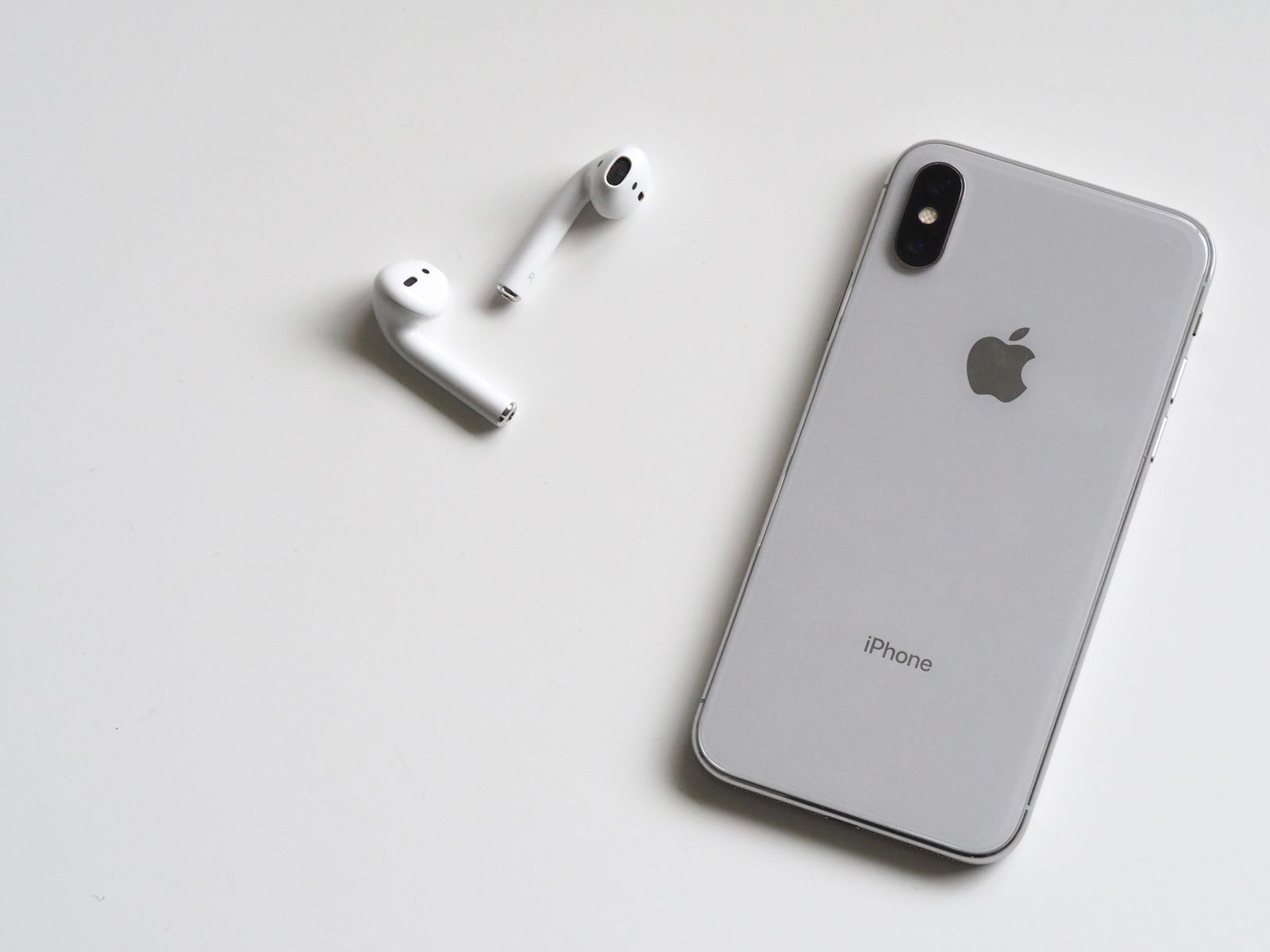
In one line. Peeling the film and installing Messages is the fastest way to carry factory defaults into the next two years. Privacy toggles, charging policy, 5G, and camera format are rarely put on the same punch list in unbox order.
Don't install apps yet: who the defaults serve
iPhone 18 Pro is in its first-sale window. Quick Start will move apps, photos, and your home screen. It will not re-audit the switches iOS 27 added. Stolen Device Protection, Advanced Data Protection, the charge limit, and the Apple Intelligence improvement program all ship "make it work first."
Apple is not trapping you. Defaults target people who want a photo in the first minute. If the phone is also a wallet, a camera, and a debug target, those defaults are loose. The twenty items below go lock → cool → then taste. Paths match common iOS 27 US / China menus; a label may differ by one word.
Price and trade-in first, if you have not read them: what the 18 Pro costs, three ways to cash the old phone. Settings are free. The expensive part is leaving the wrong ones on.
Cheat sheet
| # | Change | Path | Do this |
|---|---|---|---|
| 1 | Stolen Device Protection | Face ID & Passcode | On, delay security changes |
| 2 | Find My / Activation Lock | [Name] → Find My | Confirm on; old phone signed out |
| 3 | Advanced Data Protection | iCloud → Advanced Data Protection | On, after recovery is set |
| 4 | Recovery contact / key | Sign-In & Security | Keep at least one |
| 5 | App Tracking | Privacy & Security → Tracking | Disallow tracking requests |
| 6 | Precise Location | Location Services → per app | Off except maps / rides |
| 7 | Analytics & Apple Ads | Privacy / Apple Advertising | Off |
| 8 | Apple Intelligence improve | Apple Intelligence & Siri | Stop sharing to improve |
| 9 | Lock Screen previews | Notifications → Show Previews | When Unlocked |
| 10 | Scheduled Summary | Notifications → Scheduled Summary | Social in; banks out |
| 11 | Focus | Focus | Sleep + Work at minimum |
| 12 | Charge Limit 80% | Battery → Charging | On for overnight |
| 13 | Always On | Display & Brightness | Off, or dim it |
| 14 | 5G Auto | Cellular → Voice & Data | Not "5G On" |
| 15 | Background App Refresh | General → Background App Refresh | Wi-Fi, or per app |
| 16 | High Efficiency camera | Camera → Formats | HEIF; ProRAW on demand |
| 17 | Variable aperture | Camera app / controls | Auto; don't lock wide open |
| 18 | True Tone + Night Shift | Display & Brightness | Both on; Auto-Brightness on |
| 19 | Hide IP in Safari | Safari → Advanced / Privacy | Trackers and websites |
| 20 | iCloud Photos + auto downloads | Photos / App Store | Optimize Storage; updates on demand |
After a migration, tick this table. Old toggles travel with you. New ones often stay at factory.
Group 1: lock the phone first (1–4)
1. Turn on Stolen Device Protection
Settings → Face ID & Passcode → Stolen Device Protection. Choose Always, or at least Away from Familiar Locations. Changing the passcode, signing out of iCloud, or turning off Find My then needs Face ID again plus a security delay.
18 Pro uses under-display Face ID. Finish enrollment: glasses, a side angle, low light. A sloppy scan makes the protection hollow — it trusts that face, not the digits on the lock screen.
2. Confirm Find My and Activation Lock
Settings → [Your Name] → Find My. Find My iPhone must be on. Activation Lock follows the Apple Account: wipe the new phone before the old one is released and the next owner is stuck. Before a sale or trade-in, turn Find My off, then erase. Steps sit in the trade-in comparison.
3. Turn on Advanced Data Protection
Settings → [Name] → iCloud → Advanced Data Protection. Backups, Photos, Notes, and most other iCloud data become end-to-end encrypted. Apple cannot open them. The cost: lose the devices and the password, and there is no AppleCare rescue.
Item 4 is not optional after that.
4. Leave a recovery contact or a recovery key
Settings → [Name] → Sign-In & Security. At least one recovery contact; stronger is a printed or vaulted recovery key. ~~Do not~~ leave it as a screenshot in Photos. Advanced Data Protection with zero recovery means the next upgrade may never see that backup.
Group 2: privacy ships open (5–8)
5. Stop App Tracking requests
Settings → Privacy & Security → Tracking. Turn off Allow Apps to Request to Track. Not "tap Ask App Not to Track every time" — they should not get to ask. Ad SDKs lose a cross-app ID. The radio loses a background heartbeat.
6. Precise Location per app
Settings → Privacy & Security → Location Services. In System Services, scan iPhone Analytics and Routing & Traffic. Third-party weather, shopping, and utilities: While Using, Precise Location off. Maps, ride-hail, and Find My keep precise.
A "Once" grant should fall back to Never. A flashlight does not need your coordinates.
7. Analytics, Improve, personalized ads
Three items the setup assistant skips:
- Privacy & Security → Analytics & Improvements: off for Share iPhone / iCloud / Improve Siri.
- Privacy & Security → Apple Advertising: Personalized Ads off.
- If "Allow Apps to Check for Tracking" is still on that page, kill it.
iCloud sync is unchanged. You just send less diagnostics outbound.
8. Apple Intelligence: stop "Share to Improve"
Settings → Apple Intelligence & Siri. On-device features can stay. The cloud "improvement program / share analytics" toggle often ships on — turn it off. US and China labels differ; look for Improve, Analytics, Share.
A20 Pro local inference covers daily summaries and rewrites. Shipping chats to train a model does not buy better photos or battery. It buys another egress.
Group 3: lock screen and alerts (9–11)
9. Lock Screen previews: When Unlocked
Settings → Notifications → Show Previews → When Unlocked. OTP codes, banks, and iMessage should not face the table. Under-display Face ID unlocks fast enough that this setting is almost free, and it is one of the highest-leverage security changes on the phone.
10. Scheduled Summary, time-sensitive whitelist
Settings → Notifications → Scheduled Summary. Social, shopping, games go in the digest — two batches a day. Banks, codes, Phone, and Family stay immediate. Inside each app, split Lock Screen and Banners. The master switch is not enough.
11. At least two Focus modes
Settings → Focus. Sleep: on an hour before bed, calls from Favorites only. Work: Calendar, Messages, and the apps you actually ship with. A darker Lock Screen photo cuts night taps.
Focus filters notifications. It does not filter 5G or the camera — heat is the next group.
Group 4: battery, heat, radio (12–15)
The iOS 27 heat tests split gaming, 5G, and video. Steady-state heat is brightness, baseband, and the camera island — not "the OS is broken." Settings can stop feeding those three.
12. Charge Limit 80%
Settings → Battery → Charging → Charge Limit. Overnight cables and a desk MagSafe that never sleeps: 80%. Flip to 100% before you leave. 18 Pro battery health is honest about the cap: months of 100% overnight drop capacity faster than people budget.
It is also a heat cut. A full pack sitting on a wireless pad stays warm for no reason.
13. Turn Always On off, or make it dim
Settings → Display & Brightness → Always On. Off is cheapest. If you keep it, split Show Wallpaper / Show Notifications and drop brightness until you can just read the time. ProMotion and True Tone can stay — they are not the main source. An 80% manual brightness slider is.
14. Cellular: 5G Auto, not 5G On
Settings → Cellular → Voice & Data. 5G Auto can fall back to LTE on a weak cell and stops the C2 modem from forcing a hold. Use 5G On only for a speed test or a hotspot that must saturate. Indoor full-bar 5G streaming is already warm; locking 5G on a weak cell makes the back hit the limit before the battery does.
15. Background App Refresh on demand
Settings → General → Background App Refresh. Global Wi-Fi, or cellular only for Mail, Messages, Maps. Social and shopping can lose refresh. Alerts still arrive; the timeline just will not pre-load in the background.
Overnight: 80% limit + Always On off + 5G Auto
Shoot day: limit back to 100%, check camera formats next
Weak subway cell: confirm you are not on 5G On
Group 5: camera and display (16–18)
Variable aperture and the ProRes default decide album size more than a prettier filter. Lens differences between sizes: Pro vs Pro Max.
16. High Efficiency; ProRAW / ProRes on demand
Settings → Camera → Formats. High Efficiency (HEIF / HEVC) is the daily default. Most Compatible only when a client cannot decode. Treat Apple ProRAW and ProRes as switches. Do not make every still and every clip pay that tax.
A few minutes of 4K ProRes puts a dent in 256GB. Whether 256GB is enough is the same question as in the price piece: is the phone a camera roll or a social feed.
17. Leave variable aperture on Auto; don't lock it wide
In Camera, open the aperture control on Photo or Portrait. Auto opens up in the dark and stops down in daylight. Locking the widest aperture in sun softens edges and does not make the file more "pro." Want blur? Use Portrait. Don't fake it with a stuck iris.
The camera island sits next to under-display Face ID. Video heat already lives on that island. Long 4K plus wide-open plus ProRes is the combination that came closest to "too hot to hold" in the heat article.
18. True Tone, Night Shift, Auto-Brightness — all on
Settings → Display & Brightness. True Tone and Night Shift take the edge off at night. Auto-Brightness stops you from leaving the slider pinned outdoors. True Tone is white-point follow, not a filter. Turn it off only when you are matching print.
Group 6: browser and cloud (19–20)
19. Hide your IP from trackers and websites in Safari
Settings → Safari → Advanced / Privacy & Security. Hide IP Address → from Trackers and Websites. Fraudulent Site Warning on. Turn hiding off only if you need a stable egress IP. Daily browsing does not owe every third-party script your cellular address.
20. Optimize iCloud Photos; auto-download on demand
Settings → Photos: Optimize iPhone Storage. Originals live in iCloud. 256GB fills with Live Photos and 4K fast. Download and Keep Originals is for 512GB / 1TB people who edit offline often.
Settings → App Store: turn off automatic App Updates and App Downloads, or Wi-Fi only. Week one of roaming is when a few gigabytes of updates hurt.
If iCloud+ is short, buy storage. Do not buy 1TB just to keep every original on device — unless the phone really is your camera roll.
How to accept the setup
Walk this order. It beats rereading the essay:
- Old phone left Find My. New phone Find My is green.
- Stolen Device Protection is on. Recovery key or contact exists.
- Advanced Data Protection is on, and another signed-in device can open iCloud.com.
- Tracking requests off. Precise Location only for maps and rides.
- Charge limit 80%. Always On off or dim. Cellular is 5G Auto.
- Camera is High Efficiency. ProRAW / ProRes are not the default.
- Safari hides IP. Photos optimize storage.
| How you use it | Can wait | Don't skip |
|---|---|---|
| Social photos only | Focus can be later | 1, 5, 9, 16 |
| Overnight wireless + commute 5G | Aperture can stay Auto | 12, 13, 14 |
| Phone as camera | Personalized ads | 16, 17, 20 |
| Developer / device debug | Notification Summary | 3, 4, 15; builds below |
How this sits next to price, iOS 27, and heat
This guide is factory defaults after unboxing. It does not tell you whether to buy 18 Pro, how to cash the old phone, or whether iOS 27 still lands on an iPhone 11. Those already exist:
- Price and storage: how much is iPhone 18 Pro
- Trade-in vs resale: three cash-out paths
- Size: Pro vs Pro Max
- Coverage: which iPhones get iOS 27
- Skin temp: shipping-build heat tests
Developers: finishing these twenty toggles does not replace a Mac that is also your browser. Device debug and TestFlight signing are a separate line — Mac cloud plans when you need a node that is not the daily driver.
ZavCloud Developer Infrastructure
Phone is set. Builds still need a Mac that isn't your daily driver
iPhone 18 Pro device debug and TestFlight signing should not fight Safari on the same desk Mac
Rent a Mac mini M4 by the day — Xcode ready, 1 Gbps line